Social Logins (Google and Microsoft)
We've made logging in easy and secure with social login options via Google and Microsoft, using OAuth 2.0 and OpenID Connect. Simply sign in with your existing accounts, skipping the hassle of another username and password. This ensures a seamless and secure experience. Dive in to find out how these options can make your life easier.
Coming soon: Single Sign-On (SSO) for an even smoother experience! Our current social login via Google and Microsoft already offers a secure and straightforward way to access our platform, using trusted protocols like OAuth 2.0 and OpenID Connect. As we develop SSO, which will allow access to multiple services with a single set of credentials, rest assured that our existing social login remains a robust and convenient choice for secure access today.
Getting Started: Connecting Your Account
Connecting your account to our platform is straightforward and secure. You can start using our platform by connecting your Google or Microsoft account in just a few steps. Here's how:
Invite Flow Using Social Login
- Invitation Received: Once you're invited to join our platform, you'll receive an email with an invitation link. Click on this link to get started.
- Choose Your Login Method: On the login page, you'll see two options: "Sign in with Google" and "Sign in with Microsoft." Select the service you prefer to use for logging in.
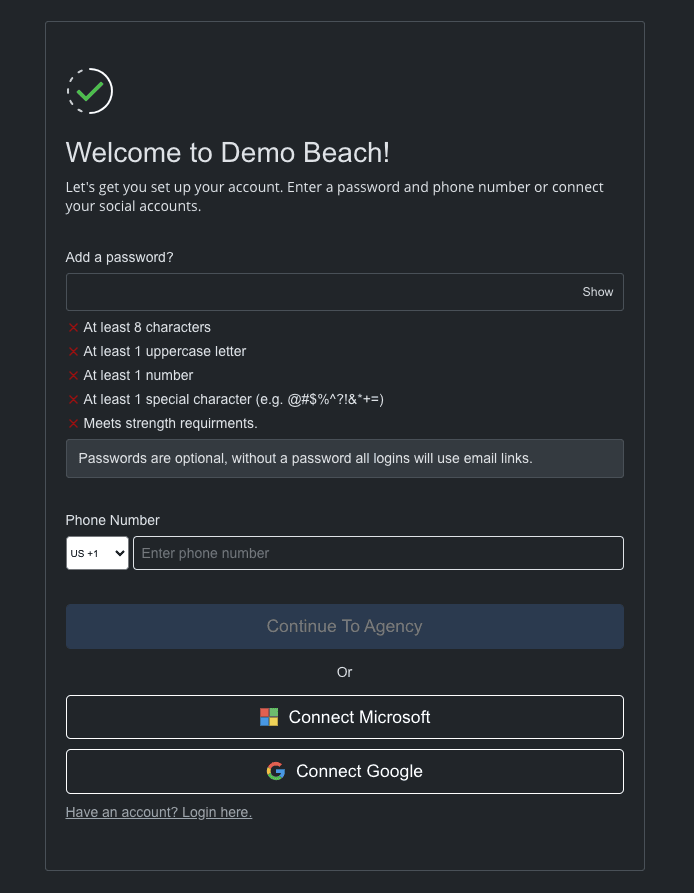
- OAuth Flow: After selecting your preferred login method, you'll be redirected to the service's login page (Google or Microsoft). If you're not already logged in, you'll need to enter your credentials.
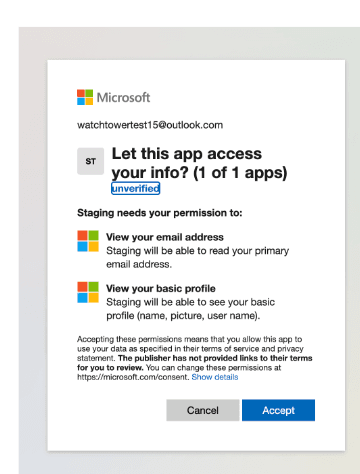
- Permission Request: You'll be asked to grant our platform permission to access your basic profile information. This is a standard procedure to ensure a secure connection between your account and our platform.
- Authentication and Authorization: Once you grant permission, the OAuth protocol securely authenticates your identity and links your Google or Microsoft account to our platform.
- Account Connected: After the authentication process is complete, you'll be redirected back to our platform with your account now connected and ready to use.
By following these simple steps, you can seamlessly connect your account and start enjoying the benefits of our platform without the need for additional usernames and passwords.
For Already Signed Up Accounts
If you're already logged in and wish to connect a Google or Microsoft accounts to your profile, follow these steps to enhance your account's accessibility and security:
- Access Your Profile: Click on the dropdown menu located at the top right corner of the navigation bar. Select "Profile" from the list of options to access your account settings.
- Navigate to Security Settings: Within your profile page, look for the "Security" section. This area is dedicated to managing your account's security settings and connected accounts.
- Connect an Account: Find the "Connected Accounts" section. Here, you'll see an option to "Connect an Account." Click this to add either a Google or Microsoft account to your profile.
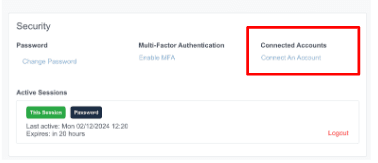
- OAuth Flow Initiated: Upon selecting "Connect an Account", you the standard OAuth flow begins, similar to the initial account connection process:
- You'll be asked which service you would like to connect (Google or Microsoft). You will choose the one you want.
- A permission request will appear, asking you to allow our platform to access your basic profile information. This step ensures a secure link between your additional account and our platform.
- After granting permission, the service authenticates your identity and authorizes the connection to our platform.
- Confirmation: Once the process is completed, you'll be redirected back to your profile page on our platform, where your new account connection will be visible under the "Connected Accounts" section.
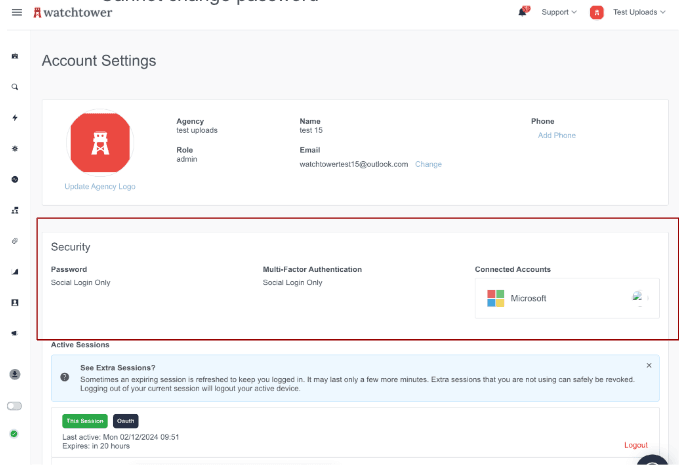
You are only allowed to connect one Google and one Microsoft account to your profile. If you need to change the connected account.
Connecting an Existing Authenticated Account
For users with an already authenticated account who wish to connect a Google or Microsoft account, the process is just as straightforward. Here's how to link your social account from within your profile:
- Access Your Profile: Click on the dropdown menu at the top right corner of the navigation bar on our platform.
- Navigate to Security: From the dropdown options, select your profile to go to your account settings. Find and click on the "Security" section.
- Connect an Account: Within the "Security" section, look for the "Connected Accounts" area. Here, you'll see an option to "Connect an Account." Click this to begin the process of linking a new social account.
- OAuth Flow: Similar to the initial connection process, selecting to connect a new account will initiate the standard OAuth flow. You'll be redirected to choose between Google or Microsoft for social login. Follow the prompts to log in to your chosen service and grant the necessary permissions for account linking.
- Account Linked: After successful authentication and authorization, you'll be redirected back to your profile on our platform, where your new social account will now be listed under "Connected Accounts."
This method allows users with existing accounts to enhance their login experience by adding a Google or Microsoft account, streamlining future logins.
Setting Up Restricted Social Login
Our platform offers a specialized social login-only feature tailored for agencies. This exclusive option allows agencies to streamline their onboarding process and enforce a uniform login method by restricting users to a specific social login provider (Google or Microsoft). This feature is designed to simplify user management and enhance security by ensuring consistent login practices across the organization.
The setup for this feature is handled directly by our support team to ensure a seamless integration with your agency's requirements. Here's how it works:
- Request Setup: An agency representative contacts our support team at Watchtower to request the activation of the social login-only feature.
- Specify Preferred Provider: The agency specifies which social login provider (Google or Microsoft) they wish to use exclusively for their users.
- Configuration by Watchtower: Our team configures the agency's account settings to restrict login options to the selected social login provider.
- Onboarding and Access: Moving forward, all users invited to the agency will only see the option to log in via the specified social provider during onboarding. Returning users will only be able to log in using the specified social provider.
This feature not only simplifies the onboarding process for new users but also ensures that login practices are uniform across the agency, enhancing both security and user experience.